So you’re ready . . . to join the Blogosphere with your own individual views.
It’s not exactly a “piece of cake,” but as my many advisors told me — JUST DO IT, and you will learn a lot as you go.
GETTING STARTED is always the hardest part of a new endeavor. So here’s a step-by-step tutorial to help you use the most popular free online blogging platform — WordPress.com.
If you follow these directions, you can be an “official” published blogger in just about an hour or so, which includes up to 30 minutes to get an email confirmation after you sign in.
Be certain to use the comment section IF you have any questions after you try this process. And keep in mind that this is just the first Baby Step, so don’t be too hard on yourself.
To give you an idea of what you are in for, I’ll list the instructions first. Then I will repeat them with the screens you will be filling out. Here goes:
1. Go to WordPress.com
2. Click on the Sign Up Now screen.
3. Put in your domain name and blog title.
4. Retrieve your Email Confirmation.
5. Click on the first link.
6. Click on New Post AND WRITE . . . AND PUBLISH
GOOD LUCK . . . AND GET BLOGGING:
1. Go to WordPress.com
Here is your first screen
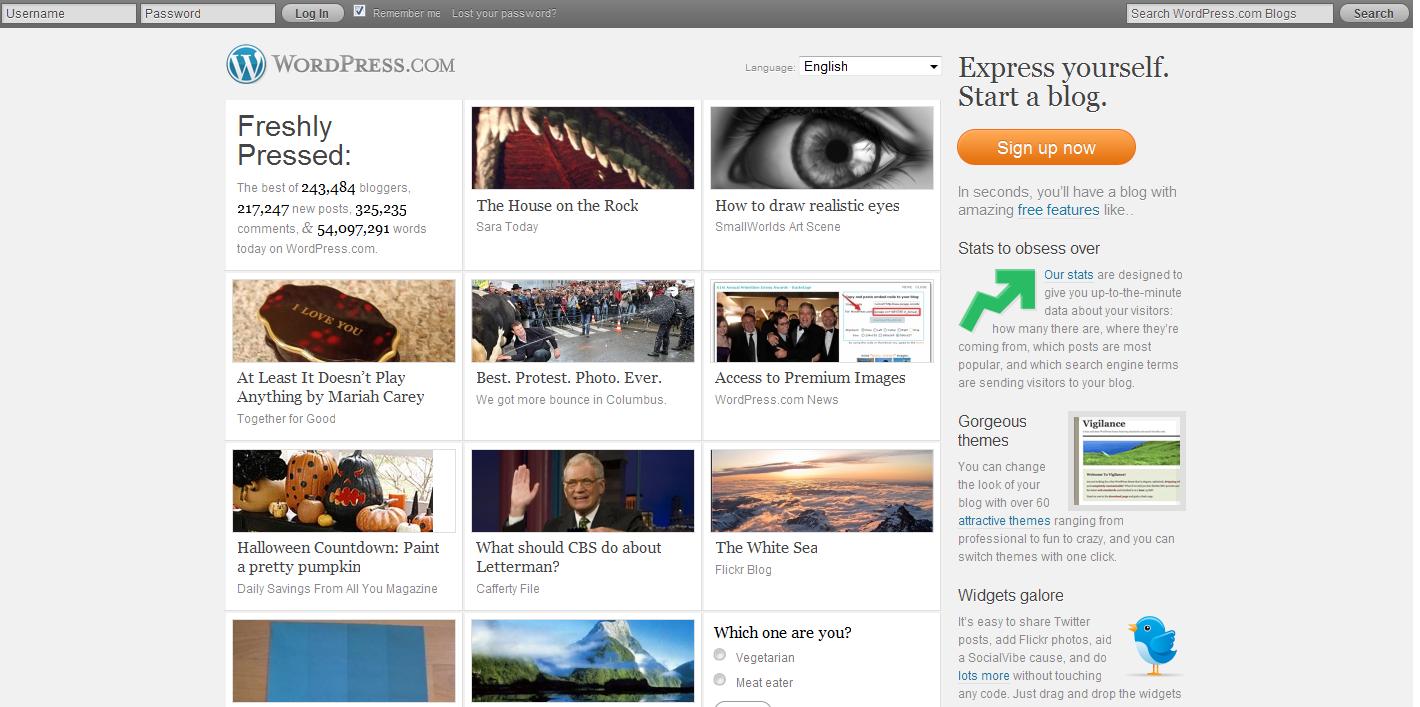
2. In upper right, you will click on the ORANGE “Sign up now” button
“Fill out the one-step form and you’ll be blogging seconds later”
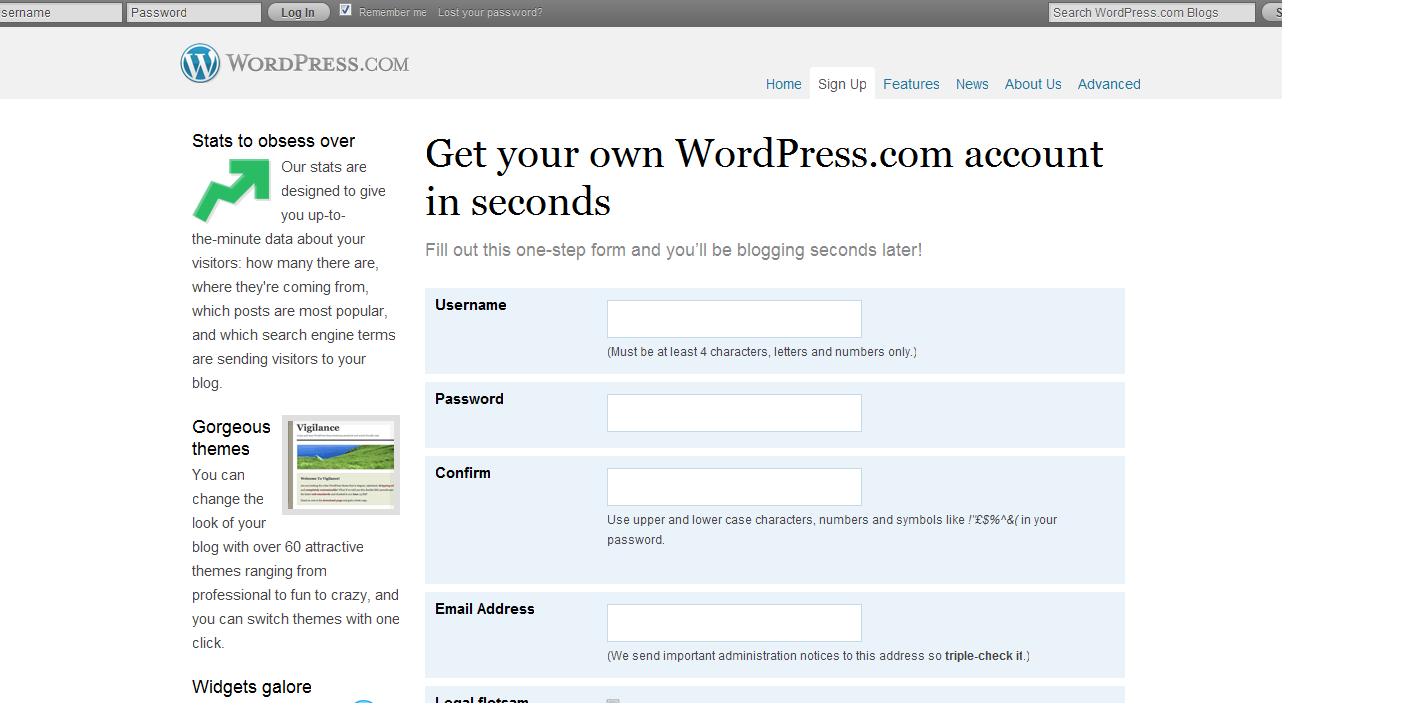
3. Next screen – BE PREPARED to find a “domain” name AND a blog title.
** IMPORTANT. Give the “domain” name some thought . . . especially if you want to be found by search engines. Try to think of KEY WORDS [i.e., the words people would use to search for your information] for BOTH the domain name and Blog title:
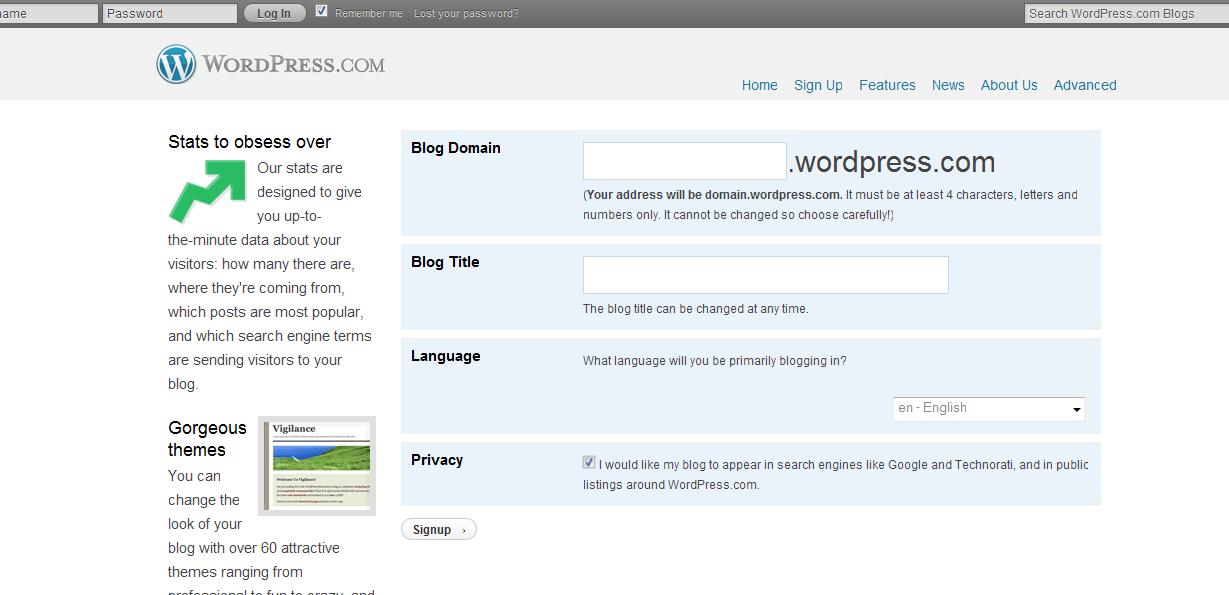
4. The next screen is called Check Your Email to Complete registration.
On this screen — which I am not going to show — you may “update your profile” by adding your First Name, Last Name, and something ABOUT YOURSELF. You will be able to change any of that information later.
COOL! I want to call my blog Cars & Guitars and other sexy things -[my husband Jack]
WHOA, Jack. You might want to re-think that name. Did you really want to attract a slew of pornography seekers?
BUT you cannot move on until you receive an email from WordPress . . . so now’s the time to get out the chips and salsa.
ALERT: Your email confirmation will come from donotreply@wordpress.com. Be certain to check your SPAM folder before you panic.
Here is the email my husband Jack received to confirm his account:
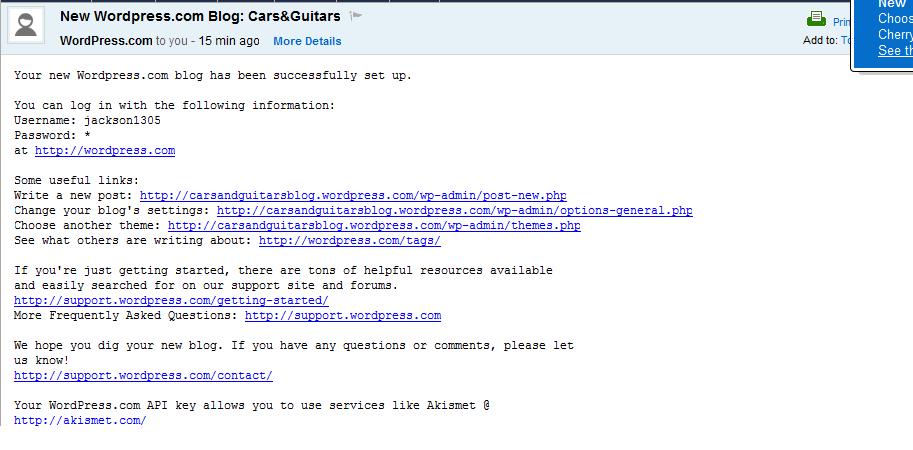
5. If you click on the first link http://wordpress.com [in your email], then you will see a screen LIKE this, but with your blog’s information:
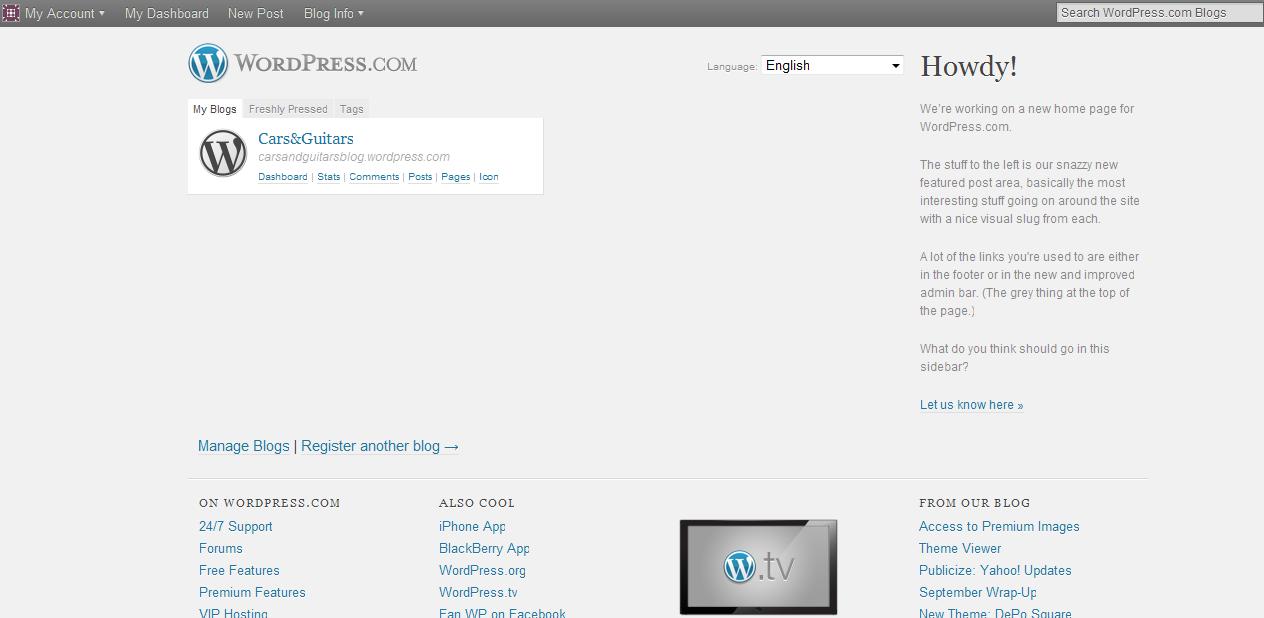
6. In the top left corner, you will see four headings: My Account — My Dashboard — New Post — Blog Info
[you will want to explore those options when you have time . . . ]
But for now, click on “New Post” so you can actually write something, post it, and take a well-deserved break.
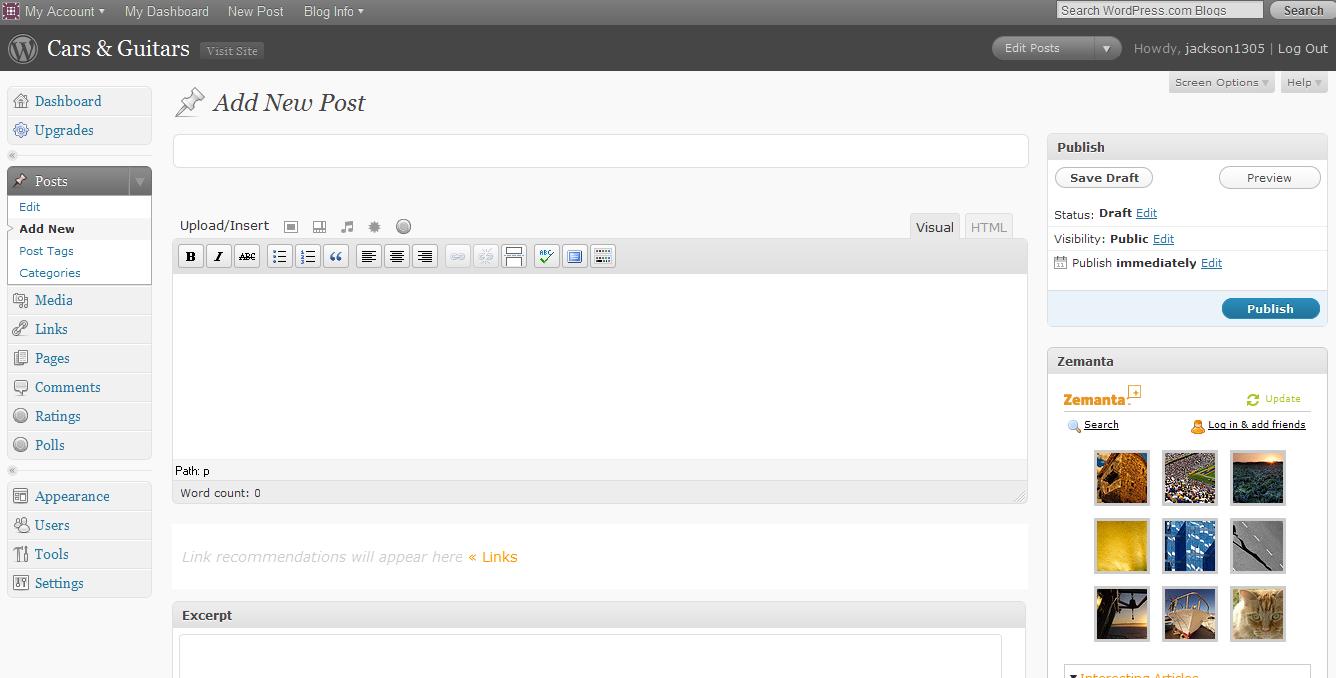
7. Here is the screen where you will write that first post:
8. NOW IT’S YOUR TURN:
a) Think of a catchy title
b) Write your post
c) Publish [blue button on the right]
How do you add a photo?
How do you use boldface and italics?
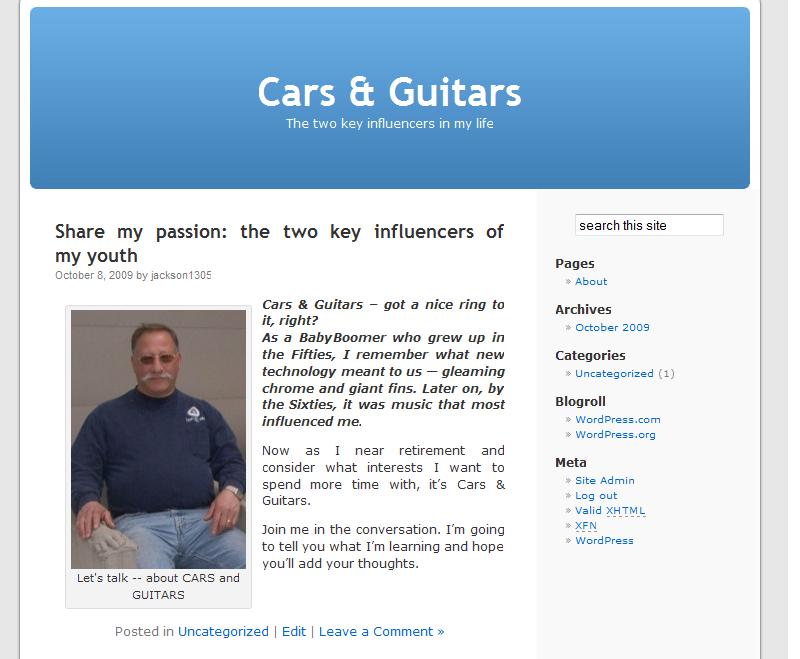
There are buttons above the writing box. You can either try them out yourself OR ask a question in the comment section. But here is a screen shot of my husband’s first post:
Good luck . . . and ask those questions 🙂


Thank you so much, I was looking for this solution for months! Good Job!
Norbert, send me the URL when you are “up and running”
🙂
This is easy to follow. I got my blog already~~
This is an entirely different world!
@shari
great tutorial for getting started on word press and blogging.
I wonder if Jack has ever heard the Tori Amos song “Cars and Guitars?” It might serve as a great theme song for his blog.
Billy, I’ll let him know. THX for the tip.
Great step-by-step instructions here. Really looking forward to my first post. I’m glad I made it to your office hour in the computer lab. Our chat was very inspiring. I’ll keep those 10 commandments close by.
. . . or better yet, Billy, why not keep track of the 10 commandments you pick up along the way of starting your own blog. Keep in mind that what YOU learn will undoubtedly help others who haven’t traveled your path yet.
This is very exciting to me !! i cant wait to blog about all the stuff i love blogging about. music sports school and women lol !! i had a question though, Can what we blog on our blogs connect with twitter and facebook so people can see what im blogging about?
Certainly, Anthony. One of the things you want to Tweet and Update will be your blog post — but, of course, you don’t want ALL of your online postings to be promoting YOU. Keep your own business to 20% and the rest can be a selection from a variety of different types of content. Check out my story on What to Tweet to Stand Out from the Masses.
Thanks for the great instructions Shari…I’m excited to be starting a blog. I will start reading through the articles you suggested before making my first post. Thanks again *
Oh this was really great help! I thought starting this blog would be easy but I got confused. Thanks for the info!
If you can come tomorrow to Laney at 5pm, I’ll be walking people through the process AND saying HI.
🙂
This is a fantastic how to for starting bloggers. Self publishing opens up a wonderful virtual location to share information, and learn from so many wonderful people.
Glad you decided to make the plunge Shari, look forward to seeing many more folks join us in blogging.
just a side note: I really enjoy the DISQUS commenting system. It allows for others to find our comments, and see which blogs we are commenting on.
THX, Mark, let’s keep the conversation going — More Smarts for all of us 🙂
Here is the discussion on the Marin Professionals LinkedIn Group site: http://tinyurl.com/yjcarx3
I really like the article that you posted here on how to start a blog step by step, and I liked it more and the fact that it is step by step, so no one will be confused. This is really great, because to give someone a fish is different that to teach someone how to catch a fish, so i really like the idea of giving the general education so everyone could participate.
If you liked this article, Misgun, then I hope you like this week’s class BECAUSE we are all going to start a blog.
🙂
Thank you for sharing this. It’s really easy to follow your step and create a blog. It looks similar with my Yahoo! 360° blog. I’m using facebook but I think this page looks more like a “blog” than facebook.